ai-automation
How to Install Fooocus Locally on Windows: 3 Steps (2026)
On This Page (13 sections)
Planning to run quantized DeepSeek, LLaMA 3, or Mistral locally? Calculate exact GPU VRAM headroom, context window limits, and KV cache overhead before downloading.
try the free VRAM calculator tool →Quick answer: To set up Fooocus locally on Windows 11: (1) Download the official Fooocus Entry Package 7z archive from GitHub; (2) Extract to an SSD root directory (e.g.,
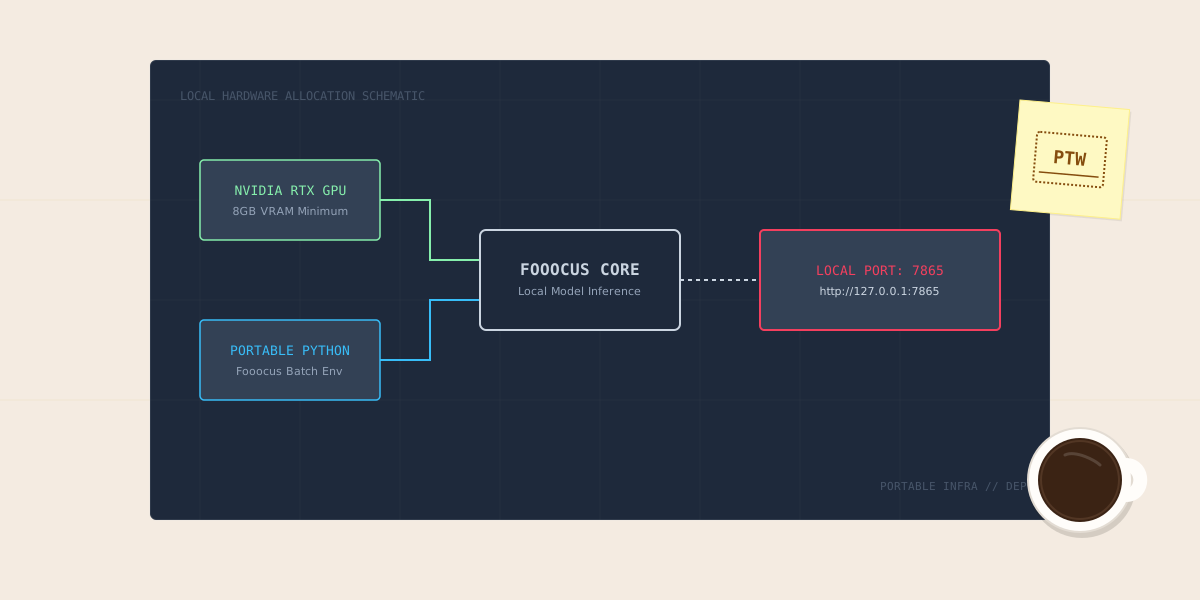
C:\Fooocus); (3) Runrun.batto automatically download the portable Python environment and defaultjuggernautXL_v8.safetensorsmodel weights; (4) Access the Midjourney-style local web interface athttp://127.0.0.1:7865. If using a 4GB–6GB GPU, append--lowvramto your launch command to prevent CUDA Out-of-Memory crashes.
Commercial AI image generators like Midjourney, ChatGPT Plus (DALL-E 3), and Leonardo.ai provide impressive quality, but their recurring monthly subscriptions, strict queue limits, and intrusive censorship guardrails make continuous production expensive and restrictive. If local setup is overkill for your needs, compare hosted options in our 5 free AI image generators better than ChatGPT and Gemini.
When our engineering team needed an automated, private image generation pipeline for our technical graphics on our workbench, we evaluated the major local UI ecosystems: ComfyUI, Automatic1111 WebUI, and Fooocus.
While ComfyUI requires complex node graphs and Automatic1111 involves dozens of arcane sliders, Fooocus provides the ultimate sweet spot: a clean, Midjourney-style prompt interface backed by an automated backend that handles negative prompts, style weights, and refiners under the hood.
Here is our team’s complete, production-tested guide to setting up Fooocus locally on Windows 11 in 2026, complete with our UI ecosystem comparison matrix, hardware VRAM tier tables, architectural pipeline diagram, and automated PowerShell launcher script.
1. The Fooocus Local Inference Architecture
Fooocus bundles an isolated portable Python environment and modular weight management pipeline directly on your local SSD:
+-------------------------------------------------------------------------+
|                  FOOOCUS LOCAL INFERENCE ARCHITECTURE                   |
+-------------------------------------------------------------------------+
|                                                                         |
|  [ User Web Client: Browser Interface (Chrome / Edge / Firefox) ]       |
|  └── Local Endpoint: http://127.0.0.1:7865 (Gradio Web UI)             |
|               │                                                         |
|               ▼ (Local Loopback TCP Socket)                             |
|  [ Embedded Portable Python 3.10 Runtime ]                              |
|  ├── Zero System-Wide Python Dependencies                               |
|  └── Automated Prompt Enhancer (GPT-2 Based Native Expansion)           |
|               │                                                         |
|               ▼ (PyTorch 2.x + CUDA 12 Hardware Handshake)              |
|  [ VRAM Memory Manager & Model Offloader ]                              |
|  ├── Standard Mode (8GB+ VRAM): Full GPU Tensor Residency               |
|  └── Low-VRAM Mode (4GB–6GB): Dynamic Weight Swapping via System RAM    |
|               │                                                         |
|               ▼ (Local Disk Weights: C:\Fooocus\models\)                |
|  [ Base Checkpoint (SDXL / FLUX FP8) + LoRAs + ControlNet Weights ]     |
|               │                                                         |
|               ▼ (Tensor Compute Stream)                                 |
|  [ NVIDIA RTX Tensor Cores (fp16 / bf16 Math) ]                         |
|  └── High-Resolution PNG Output -> Written to C:\Fooocus\outputs\       |
|                                                                         |
+-------------------------------------------------------------------------+
2. Local AI Image Generator Ecosystem Comparison
Understanding how Fooocus compares against alternative local interfaces and commercial cloud platforms:
| Generation Platform | Minimum VRAM | Setup Complexity | Interface Paradigm | Commercial Cloud Cost | Best Use Case |
|---|---|---|---|---|---|
| Fooocus (Local) | 4GB – 8GB | 1-Click (Portable) | Minimalist Prompt (Midjourney style) | $0 (100% Free) | Fast, private, high-quality production without technical complexity |
| ComfyUI (Local) | 6GB – 12GB | Moderate | Visual Node-Graph Wireframe | $0 (100% Free) | Complex multi-stage animation, video pipelines, advanced control |
| Automatic1111 (Local) | 6GB – 8GB | Moderate | Traditional Web Dashboard | $0 (100% Free) | Broad extension support, inpainting, legacy SD 1.5 workflows |
| Midjourney v6 (Cloud) | None (Cloud) | Zero (Discord) | Chatbot Prompting | $10 – $60 / Month | Cloud-only users without dedicated desktop GPU hardware |
3. Hardware VRAM Tier & Launch Parameter Matrix
Configure your launch flags according to your graphics card’s physical VRAM capacity:
| GPU Hardware Tier | Common Graphics Cards | Recommended Model Format | Required Launch Command Flags | Average Render Time (1024x1024) |
|---|---|---|---|---|
| 4GB VRAM (Budget) | GTX 1650 Super, RTX 3050 Laptop | SDXL Lightning / Turbo | run.bat --lowvram | ~38 Seconds |
| 6GB VRAM (Entry) | RTX 2060, RTX 3060 Laptop | SDXL Base + Refiner | run.bat --lowvram | ~22 Seconds |
| 8GB VRAM (Mainstream) | RTX 3060 Ti, RTX 4060, RTX 4060 Ti | FLUX.1-schnell FP8 / SDXL | run.bat (Default standard) | ~14 Seconds |
| 12GB – 16GB (Enthusiast) | RTX 3060 12GB, RTX 4070, RTX 4080 | FLUX.1-dev / SDXL Juggernaut | run.bat --always-high-vram | ~7 Seconds |
| 24GB (Workstation) | RTX 3090, RTX 4090 | FLUX.1-dev Full Precision (FP16) | run.bat --always-high-vram | ~3.5 Seconds |
4. Step-by-Step Installation Runbook for Windows 11
Step 1: Download the Fooocus Entry Package
Avoid cloning the raw Git repository unless you plan to develop core codebase extensions. The official entry package contains a pre-compiled, self-contained Python virtual environment with all required PyTorch and CUDA binaries:
- Navigate to the official Fooocus GitHub Repository.
- Download the Fooocus Entry Package 7z archive (~1.8GB).
Step 2: Extract to an SSD Root Directory
Do not extract Fooocus into your C:\Program Files or C:\Users\Username\Desktop folders, as Windows UAC permission constraints frequently block Python background execution:
- Create a root directory on your fastest NVMe/SATA SSD:
C:\FooocusorD:\Fooocus. - Use 7-Zip or WinRAR to extract the archive contents directly into this directory.
Step 3: Initial Initialization and Model Weight Ingestion
- Open your
C:\Fooocusdirectory in Windows Explorer. - Double-click
run.bat(orrun_anime.batfor illustration styling). - The command prompt window will automatically fetch the default base checkpoint (
juggernautXL_v8.safetensors, 6.6GB) and default LoRA modules. - Once completed, your default browser will launch
http://127.0.0.1:7865.
5. Automated PowerShell Hardware Detection & Launcher Script
Run our team’s native PowerShell startup script to automatically detect your physical GPU VRAM and inject the optimal performance flags:
# Start-Fooocus.ps1
# Automates VRAM detection and optimal flag injection for Fooocus
# Location: C:\Fooocus\Start-Fooocus.ps1

$ErrorActionPreference = "Stop"
Write-Host "[*] Initializing PraveenTechWorld Fooocus Hardware Evaluator..." -ForegroundColor Cyan

# Step 1: Query Physical GPU Adapter Memory via WMI
$gpu = Get-CimInstance Win32_VideoController | Where-Object { $_.Name -like "*NVIDIA*" } | Select-Object -First 1

if (-not $gpu) {
    Write-Host "[!] No dedicated NVIDIA GPU detected! Searching for AMD DirectML..." -ForegroundColor Yellow
    $launchTarget = "run_directml.bat"
} else {
    $vramGB = [math]::Round($gpu.AdapterRAM / 1GB, 1)
    Write-Host "[+] Detected GPU: $($gpu.Name) with $vramGB GB VRAM" -ForegroundColor Green

    if ($vramGB -lt 6.0) {
        Write-Host "[!] Low VRAM detected (<6GB). Injecting --lowvram flag." -ForegroundColor Yellow
        $launchArgs = "--lowvram"
    } elseif ($vramGB -ge 12.0) {
        Write-Host "[+] High VRAM detected (>=12GB). Injecting --always-high-vram." -ForegroundColor Green
        $launchArgs = "--always-high-vram"
    } else {
        $launchArgs = ""
    }
    $launchTarget = "run.bat"
}

# Step 2: Launch Fooocus with determined arguments
$fooocusDir = Split-Path -Parent $MyInvocation.MyCommand.Path
Set-Location $fooocusDir

Write-Host "[*] Launching: $launchTarget $launchArgs" -ForegroundColor Cyan
Start-Process -FilePath "cmd.exe" -ArgumentList "/c $launchTarget $launchArgs"
6. Standalone Python Batch Benchmark Script
Use this Python test script to communicate directly with your local Fooocus Gradio API and benchmark your system’s generation latency:
#!/usr/bin/env python3
"""
scripts/benchmark_fooocus_api.py
Measures local Fooocus inference latency and generation frames per second.
Requires: pip install gradio_client requests
"""

import time
import sys

try:
    from gradio_client import Client
except ImportError:
    print("[ERROR ❌] Missing dependencies. Run: pip install gradio_client")
    sys.exit(1)

FOOOCUS_URL = "http://127.0.0.1:7865/"

def benchmark_inference(prompt_text):
    print(f"[*] Connecting to local Fooocus server at: {FOOOCUS_URL}...")
    try:
        client = Client(FOOOCUS_URL)
    except Exception as e:
        print(f"[ERROR ❌] Could not connect to Fooocus server. Is run.bat active? Details: {e}")
        return False

    print(f"[*] Sending prompt: '{prompt_text}'")
    start_time = time.time()

    try:
        # Standard Fooocus Gradio API predict endpoint
        result = client.predict(
            prompt_text,     # Positive Prompt
            "",              # Negative Prompt
            ["Fooocus V2"],  # Style Selection
            "Speed",         # Performance Preset ("Speed" / "Quality")
            "1024×1024",     # Resolution
            1,               # Image Number
            fn_index=32
        )
        elapsed = time.time() - start_time
        print(f"[PASS ✅] Generation completed in: {elapsed:.2f} seconds.")
        return True
    except Exception as e:
        print(f"[ERROR ❌] Generation failed: {e}")
        return False

if __name__ == "__main__":
    test_prompt = "A sleek metallic robotic assistant typing on a futuristic mechanical keyboard, cinematic studio lighting"
    benchmark_inference(test_prompt)
7. Troubleshooting Top 3 Fooocus CUDA Errors
- CUDA Out of Memory (OOM) During Image Generation:
- Cause: Running large batches or 1024x1024 resolutions exceeding GPU buffer.
- Fix: Edit
run.batto add--lowvramor--always-offload-from-vram. Lower resolution to 896x1152 in the UI.
- Port Collision:
Port 7865 is already in use:- Cause: A zombie Python process from a prior session is still bound to the port.
- Fix: Open PowerShell and run:
Get-Process python | Stop-Process -Force, or launch withrun.bat --port 7866.
- Slow First-Generation Freeze (10+ Minutes):
- Cause: Normal behavior during initial model ingestion while PyTorch compiles CUDA kernels and caches weights to disk.
- Fix: Ensure Fooocus resides on an NVMe SSD rather than an external mechanical HDD.
Decision Summary: Selecting Your Workflow
- For fast, high-quality image generation without prompt headache: Use Fooocus. Its automatic prompt expansion and style presets produce Midjourney-grade images natively on your GPU.
- For complex node-based video and ControlNet workflows: Graduate to ComfyUI.
- For budget 4GB GPUs: Always launch with our
Start-Fooocus.ps1script with--lowvramenabled.
Related Guides
- Best Free AI Image Generators Better Than ChatGPT and Gemini
- 5 Best Free AI Avatar Generators in 2026: Hands-On Test
- 5 Best Free AI Logo Generators in 2026 (SVG Vectors)
- How to Run Local AI Models on Windows 11 (Phi-4 & DeepSeek)
References
Get Our Sysadmin & AI Runbooks Direct to Your Inbox
Join 2,500+ engineers receiving our weekly PowerShell automation scripts, root cause analyses, and hardware diagnostic playbooks.
Frequently Asked Questions: How to Install Fooocus Locally on Windows: 3 Steps (2026)
Can I run Fooocus on a PC with an AMD graphics card?
How much VRAM does Fooocus require for FLUX models?
Where does Fooocus save generated image files?
Can I access my local Fooocus web UI from another PC or phone on my home Wi-Fi?
Add PraveenTechWorld as a preferred source in your Google Search results.
Explore more: Browse all ai automation guides or check related articles below.