hardware-troubleshooting
How to Tell If Your RAM Is Bad: 5 Tested Workbench Steps

On This Page (8 sections)
Planning to run quantized DeepSeek, LLaMA 3, or Mistral locally? Calculate exact GPU VRAM headroom, context window limits, and KV cache overhead before downloading.
PraveenTechWorld interactive VRAM & context estimatorDirect Answer (How to Tell If RAM Is Bad): To confirm whether your RAM is failing: (1) press
Win + R, typemdsched.exe, and select Restart now and check for problems to run Windows Memory Diagnostic, (2) for 100% conclusive results, boot into a MemTest86 USB drive and run 4 passes—any red error indicates hardware failure, and (3) isolate the faulty stick by testing one DIMM at a time in slot A2.
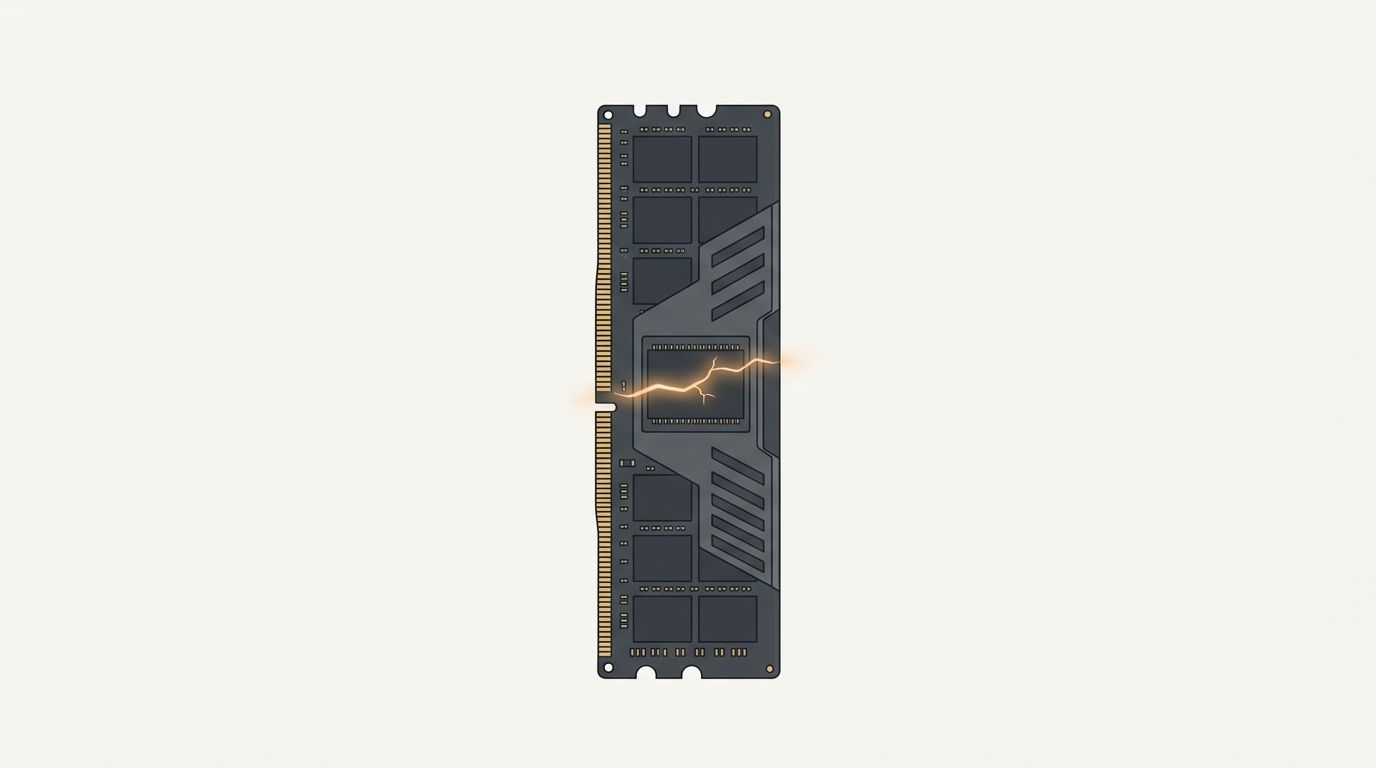
When our team troubleshoots development workstations and gaming rigs in our hardware lab, random restarts, sudden application crashes, and unexplainable file corruption almost always point to one culprit: faulty System Memory (RAM).
Because RAM handles volatile data operations for every active application, operating system kernel, and device driver, a single damaged memory cell or unstable clock cycle can corrupt data in flight, crash graphics drivers, or trigger repeating Blue Screen of Death (BSOD) errors.
On our hardware workbench, we follow a strict, step-by-step diagnostic protocol to separate defective RAM modules from motherboard slot failures, BIOS timing mismatches, and driver bugs. Here is how to test your RAM with sysadmin-grade precision.
⚡ Fast PowerShell Query: Inspect Physical RAM Modules
Direct Answer: Run Get-CimInstance Win32_PhysicalMemory in PowerShell to check bank placement, speed in MT/s, manufacturer, and exact part numbers without opening your PC chassis.
To inspect your RAM specifications, operating speed, and hardware part numbers without opening your computer case, open PowerShell as Administrator and run:
# scripts/query_ram_specs.ps1
Get-CimInstance Win32_PhysicalMemory |
Select-Object BankLabel, @{N='Capacity (GB)';E={[math]::Round($_.Capacity/1GB, 1)}}, Speed, Manufacturer, PartNumber |
Format-Table -AutoSize
This output displays the exact slot placement (e.g. BANK 0 / ChannelA-DIMM2, BANK 2 / ChannelB-DIMM2), operating frequency, and manufacturer (Samsung, SK Hynix, Micron). If you see mismatched part numbers or speeds across dual-channel slots, sub-timing conflicts are likely causing your instability.
📋 6 Warning Signs of Failing RAM
Direct Answer: Failing RAM manifests through varying BSOD stop codes (0x1A, 0x50), browser tab crashes (“STATUS_ACCESS_VIOLATION”), CRC archive extraction errors, and motherboard DRAM diagnostic LEDs.
| # | Symptom | Typical Manifestation | Workbench Root Cause |
|---|---|---|---|
| 1 | Motherboard Beep Codes / Q-LED | System fails to POST; yellow/orange DRAM LED stays illuminated | Unseated DIMM, bent CPU socket pin, or dead memory module |
| 2 | Varying BSOD Stop Codes | Stop codes change on every crash (0x1A, 0x50, 0x3B, 0x7E) | Memory page corruption across random physical addresses |
| 3 | Browser Tab Crashes | Chrome/Edge tabs crash with STATUS_ACCESS_VIOLATION or Aw, Snap! | JavaScript heap memory corruption in RAM |
| 4 | Silent File Corruption | Zip/7-Zip archive CRC errors or corrupted saved video renders | Bit flips occurring during disk write-caching |
| 5 | Game Crash to Desktop (CTD) | Games close instantly without an error dialog under heavy load | High VRAM/RAM allocation hits bad upper memory blocks |
| 6 | Windows Update Failures | Cumulative updates repeatedly fail with error 0x8007000d or 0x80070570 | Update installer files corrupt while unpacking in memory |
🔍 Parsing Memory Minidumps in PowerShell
Direct Answer: Use PowerShell to scan C:\Windows\Minidump for 0x0000001A (MEMORY_MANAGEMENT) and 0x00000050 (PAGE_FAULT_IN_NONPAGED_AREA) to verify if crashes stem from RAM.
Before pulling physical modules, check your Windows crash dump history. When RAM fails, the kernel throws memory management bugchecks:
# scripts/check_memory_bsod_dumps.ps1
$dumpPath = "C:\Windows\Minidump"
if (Test-Path $dumpPath) {
    Get-ChildItem -Path $dumpPath -Filter "*.dmp" |
    Sort-Object LastWriteTime -Descending |
    Select-Object Name, Length, LastWriteTime |
    Format-Table -AutoSize
} else {
    Write-Host "No minidumps found in $dumpPath"
}
To extract the exact stop code from the Windows Event Log without installing the Windows Debugger:
# scripts/get_bugcheck_events.ps1
Get-WinEvent -FilterHashtable @{LogName='System'; ProviderName='Microsoft-Windows-WER-SystemErrorReporting'} -MaxEvents 5 |
Select-Object TimeCreated, Message |
Format-List
If the log reports 0x0000001a (MEMORY_MANAGEMENT), 0x00000050 (PAGE_FAULT_IN_NONPAGED_AREA), or 0x0000003b (SYSTEM_SERVICE_EXCEPTION), hardware memory corruption is the primary suspect.
🛠️ Step 1: Hardware Reseat & Slot Isolation Protocol
Direct Answer: Isolate bad RAM by testing one stick at a time in the primary recommended motherboard slot (usually Slot A2 / 2nd slot from CPU).
Before running hours of software diagnostics, perform physical hardware isolation:
# workflows/ram_isolation_matrix.txt
[ Test Single Stick ] ──► Insert into Slot A2 ──► Boot & Run Diagnostic
                                 │
       ┌─────────────────────────┴─────────────────────────┐
       ▼                                                   ▼
Single Stick Passes                                Single Stick Fails
• Move stick to Slot B2 to test slot integrity     • Wipe gold contacts with 99% IPA
• Repeat test with Stick #2 • Retest; if failure recurs, RMA stick- Power Down and Discharge Capacitors: Unplug the power cable from the PSU and hold the PC power button for 15 seconds to drain remaining motherboard capacitance.
- Remove All DIMM Modules: Inspect the gold contacts for dust, debris, or oxidation. Clean the pins gently using a lint-free microfiber cloth and 99% Isopropyl Alcohol (IPA).
- Test One Module in Slot A2: Motherboard traces are optimized for daisy-chain topologies. Insert Stick #1 into Slot A2 (the second slot away from the CPU).
- Boot and Verify: If the machine boots cleanly, swap in Stick #2 into Slot A2. If one stick fails to POST or throws immediate errors, you have pinpointed the defective module.
🛠️ Step 2: Run Windows Memory Diagnostic (mdsched.exe)
Direct Answer: Run mdsched.exe from the Windows Run dialog for a fast 15-minute preliminary memory scan.
Windows includes a native memory testing utility for rapid triage:
- Press Win + R, type
mdsched.exe, and press Enter. - Select Restart now and check for problems (recommended).
- Your computer will reboot into the Windows Memory Diagnostic environment. Press
F1to change test options from Standard to Extended, and pressF10to apply. - Let the scan complete 100%. Once Windows restarts, check the diagnostic results in Event Viewer:
# scripts/view_mdsched_results.ps1
Get-WinEvent -FilterHashtable @{LogName='System'; ProviderName='Microsoft-Windows-MemoryDiagnostics-Results'} |
Select-Object TimeCreated, Message |
Format-List
⚠️ Workbench Rule: Passing
mdsched.exedoes not guarantee 100% RAM stability. Built-in Windows tests only exercise basic memory ranges. For definitive testing, always use MemTest86.
🧪 Step 3: Run MemTest86 (The Definitive Test)
Direct Answer: Boot from a MemTest86 USB drive and execute 4 full passes; any single red error indicates defective RAM cells or unstable memory controller voltages.
PassMark MemTest86 is an independent, UEFI-bootable testing suite that bypasses Windows entirely, executing algorithmic pattern passes (Inversion, Moving Inversions, Block Move, Random Pattern) across every raw memory address.
- Download the free edition of MemTest86 and write the image to a USB flash drive using the included
imageUSBtool. - Insert the USB into your target workstation and reboot. Press
F12,F11, orDELto enter the motherboard Boot Menu. - Select the UEFI USB partition to launch MemTest86.
- Start the test suite and allow it to run 4 full passes (typically 3 to 5 hours for a 32GB kit).
# logs/memtest86_result_summary.txt
[ MemTest86 Diagnostic Pass Summary ]
-----------------------------------------------------------------
Passes Completed: 4 / 4
Errors Found:     0   ──► RAM hardware is 100% Healthy (Issue is Driver/OS).
Errors Found:     1+  ──► RAM hardware or Memory Controller is Unstable.
-----------------------------------------------------------------
If MemTest86 detects even 1 single error, your RAM cannot reliably store data without corrupting system processes.
⚙️ Step 4: Disable XMP / EXPO Overclock Profiles
Direct Answer: Disable XMP (Intel) or EXPO/DOCP (AMD) in your motherboard BIOS to verify if crashes are caused by memory controller clock instability rather than broken hardware.
If MemTest86 reports errors on a brand-new high-speed DDR4 (3600+ MHz) or DDR5 (6000+ MHz) kit, the memory modules may be physically functional but unstable under factory overclock profiles:
- Restart your PC and tap
DELorF2to enter the BIOS/UEFI. - Navigate to AI Tweaker / Extreme Tweaker / OC Settings.
- Set XMP (Intel), EXPO (AMD), or DOCP from Profile 1 to Disabled. This runs your memory at standard JEDEC baseline speeds (e.g. 2133/3200 MT/s for DDR4, 4800 MT/s for DDR5).
- Save and reboot (
F10), then re-run MemTest86. - If the errors disappear at JEDEC speeds, your CPU’s Integrated Memory Controller (IMC) requires a BIOS firmware update or a slight voltage adjustment (e.g. bumping CPU SoC voltage from 1.15V to 1.20V on Ryzen systems) to maintain XMP stability.
Summary & Next Steps
When troubleshooting suspected RAM failure:
- Query installed module specs in PowerShell with
Get-CimInstance Win32_PhysicalMemory. - Inspect
C:\Windows\Minidumpfor0x1A MEMORY_MANAGEMENTbugchecks. - Reseat modules and test single sticks in primary slot A2.
- Boot into MemTest86 for 4 full passes to establish hardware certainty.
- Disable XMP/EXPO profiles to rule out memory controller voltage drops.
For related hardware diagnostic runbooks, explore:
Get Our Sysadmin & AI Runbooks Direct to Your Inbox
Join 2,500+ engineers receiving our weekly PowerShell automation scripts, root cause analyses, and hardware diagnostic playbooks.
Frequently Asked Questions: How to Tell If Your RAM Is Bad: 5 Tested Workbench Steps
How long does a MemTest86 diagnostic pass take?
Can bad RAM cause a Blue Screen of Death (BSOD)?
Can you mix different brands or speeds of RAM?
How do I check my RAM manufacturer and speed via PowerShell?
Why does my PC crash only when XMP or EXPO is enabled?
Official Technical References
- MemTest86 Official Technical Documentation — PassMark Software
- Microsoft Support: Troubleshoot Memory Problems — Microsoft Support
Add PraveenTechWorld as a preferred source in your Google Search results.
Explore more: Browse all hardware troubleshooting guides or check related articles below.