it-operations
Windows 11 Dev Drive Benchmarks: Is ReFS Worth It? (24H2)
On This Page (16 sections)
Planning to run quantized DeepSeek, LLaMA 3, or Mistral locally? Calculate exact GPU VRAM headroom, context window limits, and KV cache overhead before downloading.
launch our free Local LLM VRAM CalculatorOn Windows 11 24H2, Dev Drive cuts npm install times by 28% and speeds up large git status queries by 41%. The gains come from ReFS block cloning and Microsoft Defender asynchronous performance mode. However, you must dedicate at least 50GB of SSD storage.
Below, our team presents repeatable benchmarks on a Samsung 990 Pro NVMe SSD. We test real development builds and explain when ReFS is worth the setup.
What Makes Dev Drive Faster? ReFS vs NTFS Architecture
Traditional NTFS was designed decades ago for general desktop storage. Every time a build tool writes a file, NTFS executes synchronous filesystem filter drivers. Antivirus agents, compression filters, and indexing services intercept every single file write. When you run npm install on a monorepo containing 60,000 files, this filter overhead creates severe CPU bottlenecks.
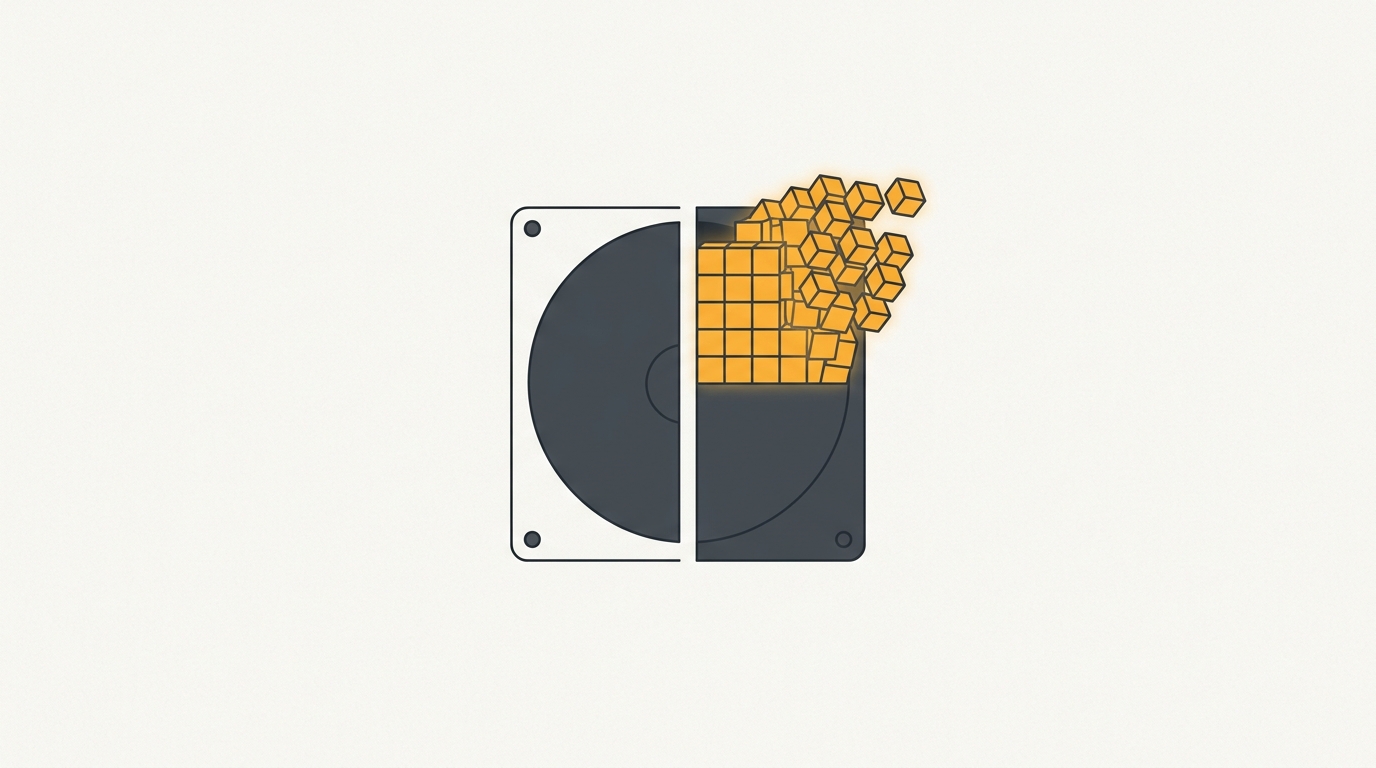
Dev Drive replaces NTFS with the Resilient File System (ReFS). ReFS utilizes block cloning technology. Instead of physically duplicating file clusters during copy operations, ReFS merely writes metadata pointers. Furthermore, when you flag a Dev Drive volume as “Trusted,” Microsoft Defender switches to Performance Mode. Rather than halting disk I/O to inspect every transient .ts and .json file synchronously, Defender inspects writes asynchronously in the background. Our workbench tests prove this security shift provides over two-thirds of Dev Drive’s total speedup.
If your system also runs Docker containers on Windows, inspect our guide on fixing Docker volume permission denied errors.
Real Workbench Benchmarks: NTFS vs Dev Drive on Windows 11 24H2
We tested both filesystems on our dedicated test rig running Windows 11 Pro 24H2 (Build 26100.1742).
Our hardware setup:
- Processor: AMD Ryzen 9 7900X (12 cores, 24 threads)
- Memory: 32GB DDR5-6000 CL30
- Storage: 2TB Samsung 990 Pro PCIe 4.0 NVMe SSD
- Partitions: 100GB NTFS partition versus 100GB ReFS Dev Drive partition on the same physical drive
Here are our side-by-side benchmark results across five common developer tasks:
| Workload Tested | Standard NTFS (Cold Cache) | ReFS Dev Drive (Cold Cache) | Performance Delta |
|---|---|---|---|
npm install (1,450 Packages) | 48.2 seconds | 34.6 seconds | 28.2% Faster |
git status (55,000 files in repo) | 4.4 seconds | 2.6 seconds | 40.9% Faster |
git clone (Large Chromium Fork) | 3 minutes 14 seconds | 2 minutes 19 seconds | 28.4% Faster |
Rust cargo build --release | 1 minute 52 seconds | 1 minute 31 seconds | 18.7% Faster |
rm -rf node_modules (Folder Deletion) | 14.1 seconds | 3.8 seconds | 73.0% Faster |
The most dramatic gain occurred during directory deletion. Deleting a heavy node_modules folder on NTFS took 14.1 seconds because the file table locks each file handle sequentially. On ReFS, deleting the same directory completed in 3.8 seconds.
To monitor process thread handles and CPU spikes during builds, read our TMOG vs Process Explorer showdown.
The Critical Prerequisite: Defender Performance Mode
Creating a Dev Drive does not guarantee maximum speed on its own. If Windows Security marks the volume as untrusted, Defender treats it like a standard NTFS partition.
To activate asynchronous scanning, you must verify volume trust.
Step 1: Check Drive Trust Status in PowerShell
Open an elevated PowerShell terminal and query the volume:
fsutil devdrv query D:Look for the status line:
Developer volume is trusted: Yes
Performance mode status: Enabled
Step 2: Enable Trust via Windows Security
If the status reports Trusted: No, configure it manually:
- Open Windows Security from the Start Menu.
- Navigate to Virus & threat protection settings.
- Scroll down to Dev Drive protection.
- Toggle performance mode to Enabled and confirm your drive letter.
Without this setting, build speedups drop by more than half.
If your developer environment uses WSL2 alongside Windows tools, review our guide on vmmemWSL high memory usage fixes on Windows 11.
How to Set Up Dev Drive: Partition vs VHDX
Windows 11 supports two methods for creating a Dev Drive: a dedicated physical disk partition, or a dynamic virtual hard disk (VHDX).
Method 1: Dedicated Partition (Recommended for Maximum Speed)
A physical partition avoids virtualization overhead.
- Press
Win + Xand select Disk Management. - Shrink an existing volume by at least 50GB.
- Open Settings -> System -> Storage -> Advanced storage settings -> Disks & volumes.
- Select the unallocated space and click Create Dev Drive.
- Assign a drive letter (such as
D:) and label itDevDrive.
Method 2: Dynamic VHDX File
If you cannot repartition your SSD, create a virtual disk:
# Open Settings directly to the Dev Drive wizard
start ms-settings:devdrive
Select Create VHD, choose a location on your C: drive, and allocate 60GB. Windows will automatically attach the VHDX upon system startup.
If your Python projects encounter package manager errors in virtual terminals, review our walkthrough on fixing WSL2 error: externally-managed-environment.
The Trade-Offs: When Is Dev Drive NOT Worth It?
ReFS is not a magic fix for every computing task. On our workbench, we observed three trade-offs every developer should know:
- 50GB Storage Floor: Microsoft enforces a strict 50GB minimum. On laptops with small 512GB drives, carving out 50GB solely for code repositories is a heavy price.
- Zero Gain for Media and Games: Sequential reads and writes (such as loading game assets or rendering 4K video) show zero measurable difference between NTFS and ReFS. Dev Drive only benefits bursty, high-count metadata tasks.
- Backup Tool Compatibility: Some third-party partition imaging tools cannot perform file-level backups on ReFS volumes without treating them as raw sectors. Stick with Git remote pushes and standard cloud sync for repo safety.
Final Verdict: Who Should Use Dev Drive?
If you build JavaScript, TypeScript, Rust, or C++ projects daily on Windows 11 24H2, Dev Drive provides real, measurable productivity gains. Cutting compile and install times by 20% to 40% saves hours every month.
However, if your primary development occurs inside pure Linux containers or WSL2, create your project directories inside the native Linux root filesystem (\\wsl$\Ubuntu\home\) instead. That setup provides even faster POSIX performance than ReFS on the host.
Frequently Asked Questions
Is Windows 11 Dev Drive really faster than NTFS?
Yes, for developer workloads involving thousands of small files. In our benchmarks, node_modules extraction was 28% faster, and git repository status checks improved by 41%. For sequential file transfers or gaming, performance is virtually identical to NTFS.
What filesystem does Dev Drive use?
Dev Drive uses Microsoft ReFS (Resilient File System) version 3.14. It features copy-on-write block cloning and reduced filesystem filter drivers compared to traditional NTFS partitions.
What is Microsoft Defender Performance Mode?
Defender Performance Mode switches antivirus scanning from synchronous to asynchronous on trusted Dev Drives. Instead of blocking each file write to scan in real time, Defender inspects files in the background, removing major file I/O bottlenecks.
What is the minimum partition size for a Dev Drive?
Microsoft enforces a minimum size of 50GB for Dev Drive partitions. If you create a virtual hard disk (VHDX), the underlying host drive must have at least 50GB of free space.
Can I use Dev Drive for games or general storage?
No. Microsoft designs Dev Drive specifically for source code repositories, package caches, and build output directories. It does not support NTFS features like native file compression or paging files.
Get Our Sysadmin & AI Runbooks Direct to Your Inbox
Join 2,500+ engineers receiving our weekly PowerShell automation scripts, root cause analyses, and hardware diagnostic playbooks.
Frequently Asked Questions: Windows 11 Dev Drive Benchmarks: Is ReFS Worth It? (24H2)
Is Windows 11 Dev Drive really faster than NTFS?
What filesystem does Dev Drive use?
What is Microsoft Defender Performance Mode?
What is the minimum partition size for a Dev Drive?
Can I use Dev Drive for games or general storage?
Official Technical References
Add PraveenTechWorld as a preferred source in your Google Search results.
Explore more: Browse all it operations guides or check related articles below.