website-setup
How to Set Up GA4 Events & Custom Tracking (Step-by-St
On This Page (8 sections)
Want to stop Google from tracking your phone and browser? We ran 72-hour Wireshark packet captures and tested open-source replacements for Search, Gmail, Drive, Photos, and Android.
read our complete DeGoogle Starter Pack and benchmark dataHave you ever felt a bit lost when diving into GA4’ We know we did! During our team’s first month exploring Google Analytics 4, we were completely overwhelmed by the variety of events available. Some popped up automatically, while others needed a bit of manual setup, and there were also those that Google recommended but didn’t enforce. Figuring out which ones to use and when was quite a puzzle.
But don’t worry! After some digging, our team realized it’s not as complicated as it first seems. GA4 categorizes events into three main types: automatic, recommended, and custom. Each type has its own unique purpose.
1. Automatic Events: The Freebies
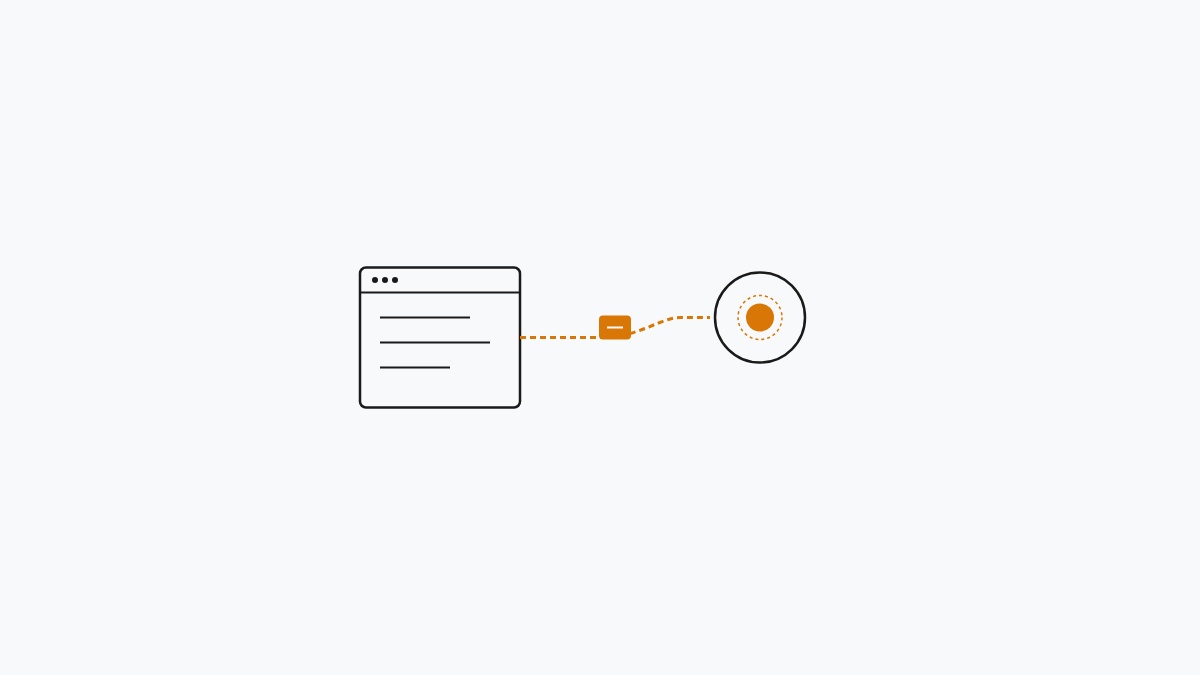
Let’s kick things off with automatic events. These are the events that GA4 tracks without you needing to lift a finger. They start recording as soon as you install the GA4 tag. Here’s what you can expect them to capture:
page_view: every time someone loads a pagesession_start: each new session that beginsfirst_visit: the very first time a user visits your siteuser_engagement: when a page is in focus for over 10 seconds
These events take care of the essentials for you. You’ll get page view counts and session information without having to mess with any code. Plus, if you’ve enabled enhanced measurement (which our team highly recommends), you can also track events like scroll, outbound_click, site_search, video_start, and file_download.
One thing to keep in mind: you can’t modify automatic events. You won’t be able to add custom parameters or change their firing behavior. They form the backbone of your GA4 data, and everything else builds on top of them.
If you’re not seeing these events, it might be worth checking your enhanced measurement settings. You can find that under Admin > Data Streams > your web stream. For more details on nailing the basics, check out the GA4 page tracking guide.
2. Recommended Events: The Template
Now, let’s talk about recommended events. These are predefined events that Google suggests based on different industries and use cases. They come with standardized names and parameters that help unlock built-in reports.
If you’re running an ecommerce site, for instance, Google recommends events like:
view_item: when someone views a productadd_to_cart: when a product is added to a cartpurchase: when a transaction is completedremove_from_cart: when a product is taken out of the cart
If your site focuses on content or lead generation, you might want to consider:
generate_lead: when someone submits a formsign_up: when someone creates an accountshare: when content is shared via social media
Using recommended events has some neat advantages. First off, when you use the correct event names, GA4’s built-in reports automatically fill up with your data. Also, your data remains standardized, allowing you to compare your metrics against industry benchmarks without needing to do any manual work.
The key difference from custom events is that you need to implement these yourself - either through code or Google Tag Manager. They won’t fire automatically, but Google has predefined the names and parameters for you.
If you’re looking for more tips on how to make the most of your GA4 data, the GA4 content strategy guide offers some great insights on structuring your measurement approach.
3. Custom Events: Your Own Rules
4. How to Choose the Right Event Type
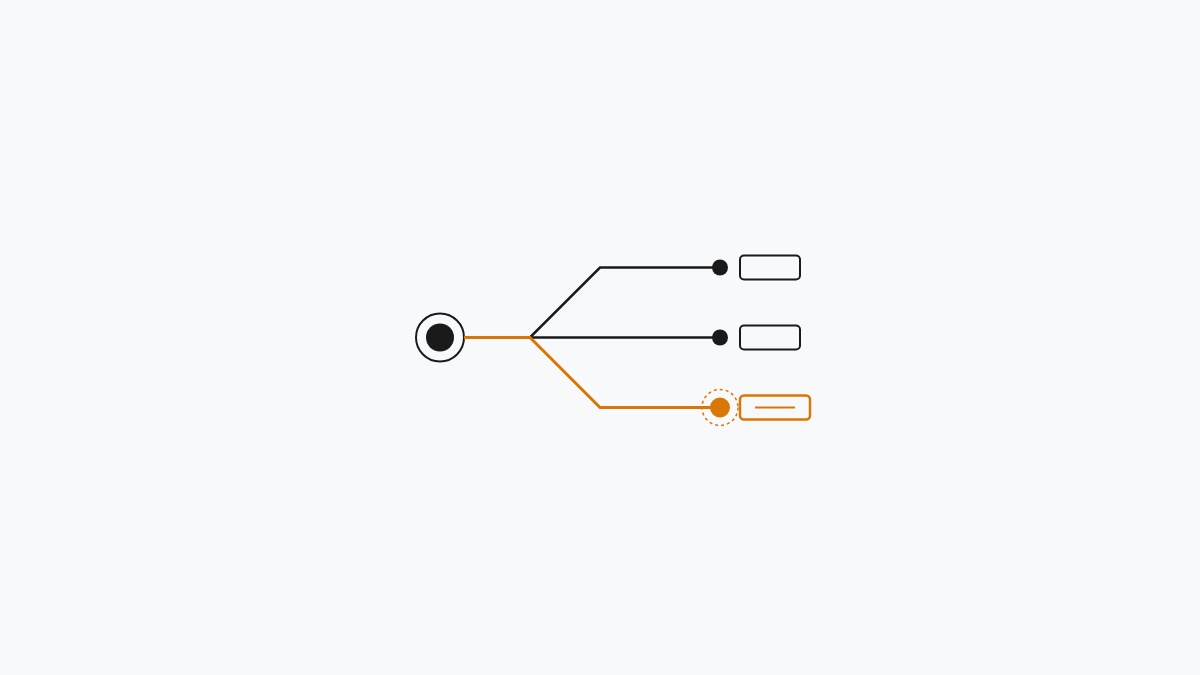
So, how do you decide which type of event to use? Here’s a simple framework:
- If Google tracks it automatically with enhanced measurement, go for the automatic event.
- If there’s a recommended event for your action (like
purchaseorgenerate_lead), use that recommended name. - If your action is unique to your site, then create a custom event.
Most sites will find that automatic and recommended events cover their needs just fine. Custom events should be used to fill in any gaps for tracking site-specific actions. Just be cautious not to create custom events for things that Google already tracks.
5. Implementing Events with Google Tag Manager
Now, if you’re wondering about the easiest way to implement recommended and custom events, Google Tag Manager (GTM) is your best friend. You can create a GTM tag that fires when the action you want to track occurs, and then set up the event name and parameters in that tag.
For example, if you want to track a button click as a recommended generate_lead event:
- Create a new tag in GTM
- Select “GA4 Event” as the tag type
- Set the event name to
generate_lead - Add parameters like
valueandcurrency - Set the trigger to fire when someone clicks that button
GTM takes care of injecting the code automatically, which means you won’t have to modify any source files. This is a big reason why it pairs so well with GA4!
6. Common Mistakes
Here are a few common pitfalls to watch out for:
-
Creating custom events for things GA4 already tracks automatically. It’s easy to fall into this trap, like creating custom
scrollevents when enhanced measurement already does that. Always check what enhanced measurement covers before writing any custom code. -
Wrong event names. A simple typo in an event name can send your data to the wrong place. GA4 doesn’t validate event names, so if you accidentally create a
purchseevent (missing the ‘a’), it’ll end up as a separate event instead of populating the purchase report. -
Too many custom events. Our team made this mistake ourselves! We started with 12 custom events and quickly found that we were tracking things we never actually looked at. It’s usually best to start with around 3 to 5 custom events that align with your core goals and only add more when you really need specific insights.
-
Missing parameters. When an event doesn’t have parameters, it tells you something happened but leaves out the crucial details. Make sure every custom event includes at least a
nameoridparameter to identify the specific item or action.
If you’re looking for a comprehensive guide to GA4, the Google Analytics for beginners guide is a great place to start.
7. Frequently Asked Questions
Q: Can I modify automatic events’
A: Nope, automatic events come with predefined names and parameters that you can’t change. If you need different data, you’ll have to create a custom event that fires alongside the automatic one.
Q: How many custom events can I create’
A: GA4 allows for up to 500 unique event names per property, but honestly, most sites won’t need that many. Too many events can create more noise than insight.
Q: Do recommended events work without GTM’
A: Yes, you can send recommended events directly from your website code using the gtag() function or the Google Analytics Measurement Protocol. GTM just makes it easier to manage everything.
Q: What happens if I use the wrong event name’
A: GA4 will store the event as it is. It won’t check for typos or correct any invalid names. So, your data might appear in your reports, but not where you expected. It’s good practice to test new events in the Realtime report first.
Q: Can I rename an event after creating it’
A: Unfortunately, no. GA4 doesn’t support renaming events. You can delete unused events from the admin panel, but any historical data tied to the old name will remain. So, be sure to test your event names thoroughly before going live.
For more tips on improving your GA4 setup, the GA4 page tracking guide dives into how page views and user engagement tracking work together. If your data doesn’t look quite right, the GA4 troubleshooting guide is a handy resource for tackling common issues.
What are your thoughts on using GA4 events? Have you encountered any challenges or found tips that work well for you? Our team would love to hear your experiences!
References & Further Reading for How to Set Up GA4 Events & Custom Tracking (Step-by-Step Guide)
Get Our Sysadmin & AI Runbooks Direct to Your Inbox
Join 2,500+ engineers receiving our weekly PowerShell automation scripts, root cause analyses, and hardware diagnostic playbooks.
Frequently Asked Questions: How to Set Up GA4 Events & Custom Tracking (Step-by-St
Can I modify automatic events?
How many custom events can I create?
Do recommended events work without GTM?
What happens if I use the wrong event name?
Can I rename an event after creating it?
Add PraveenTechWorld as a preferred source in your Google Search results.
Explore more: Browse all website setup guides or check related articles below.