website-setup
How to Enable Google Search Console for Your Website (2026)
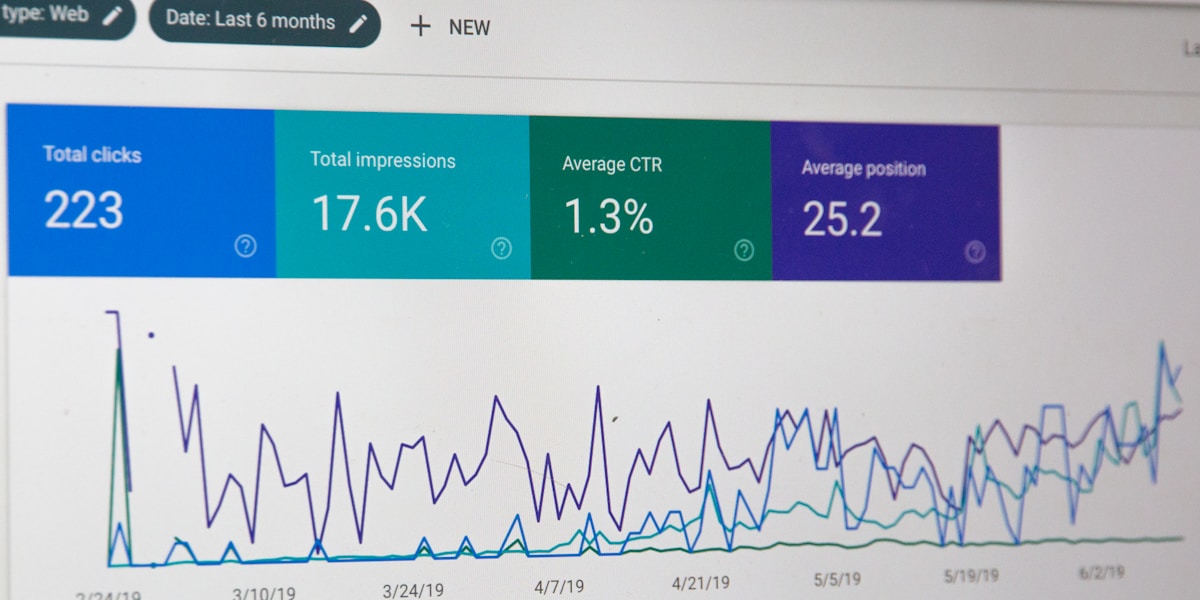
I remember setting up my first website and waiting weeks for Google to show up. Nothing happened. Zero impressions. Zero clicks. I did not know I had to prove I owned the site first.
Google Search Console is the tool that tells Google your site exists and that you are the person in charge. Without it, Google treats your site like an unverified address. It might still show up eventually, but the process takes much longer and you get no data about what is happening.
Here is how to enable it properly.
What You Need Before Starting
You need three things:
- A Google account (Gmail works)
- Access to your domain’s DNS settings or website files
- Your website URL
If you already have Google Analytics set up, the process is even faster because Google can use your Analytics account to verify ownership.
Method 1: DNS Verification (Best for Most People)
This is the method I recommend. It works on every website because DNS is the foundation of your domain. Once set, it never breaks.
- Go to search.google.com/search-console
- Sign in with your Google account
- Enter your website URL
- Select “DNS” as the verification method
- Google shows you a TXT record value — copy it
- Go to your domain registrar or DNS provider (where you bought your domain)
- Add a new TXT record with the value Google gave you
- Wait 5-10 minutes for DNS to update
- Click “Verify” in Search Console
The TXT record stays valid as long as you own the domain. You never have to do this again.
Method 2: HTML File Upload
If DNS feels intimidating, upload a file instead. This works on most hosting platforms.
- In Search Console, choose “HTML file” verification
- Google gives you an HTML file to download
- Upload that file to the root folder of your website
- Click “Verify”
The file must stay in place for verification to remain active. If you rebuild your site or switch hosts, you may need to re-add it. I used this method on my first site and it worked fine until I migrated hosts and forgot to move the file.
For step-by-step GSC setup instructions, see the full guide.
Method 3: Google Analytics Verification
If you already have Google Analytics 4 on your site, verification takes one click.
- In Search Console, choose “Google Analytics” as the verification method
- Make sure you have Editor access to the GA4 property
- Click “Verify”
Google checks that the same Google account has Analytics access. This is the fastest method if Analytics is already running. Note that the GA4 property must use the same URL as what you are verifying.
If your analytics stopped working, check my GA4 troubleshooting guide before trying this method.
What to Do After Verification
Once Search Console confirms you own the site, do these things:
Submit your sitemap. Go to Sitemaps in the sidebar, enter “sitemap-index.xml” (or your sitemap URL), and click Submit. This tells Google about all your pages at once instead of waiting for Google to discover them one by one.
Check the URL Inspection tool. Paste your homepage URL into the search bar at the top. This shows you exactly how Google sees your site. If there are errors, it tells you what they are.
Set your preferred domain. Under Settings, choose whether you want www or non-www as your primary domain. Google will treat the other version as a redirect.
Add users. If anyone else works on this site, add them under Settings > Users and Permissions. They do not need your Google account password.
For a full walkthrough of getting your site on Google, read how to add your website to Google Search.
Frequently Asked Questions
Q: Do I need Google Search Console if I already have Google Analytics? A: Yes. They serve different purposes. Analytics shows you what happens after people arrive on your site. Search Console shows you how people found you in search results, what keywords they used, and whether Google can properly index your pages.
Q: Can I have multiple websites in one Search Console account? A: Yes. You can add as many sites as you own. Each site needs its own verification, but they all live under the same Google account. This is useful if you manage multiple projects.
Q: How long does Google take to show data after verification? A: Data starts appearing within 24 to 48 hours for most sites. Sitemap processing takes a few days. If you see nothing after a week, check that your site is not blocked from indexing.
Q: What if I cannot add a TXT record or upload a file? A: If you use a platform like WordPress.com, Wix, or Squarespace, check their documentation for Search Console setup. Many platforms have built-in verification options. You can also use the Google Analytics or Google Tag Manager methods if those are already connected.
Q: Is Domain Property or URL Prefix better? A: Domain Property covers all subdomains (www, m, blog.yoursite.com) automatically. URL Prefix only covers the specific URL you entered. I recommend Domain Property for most sites because it includes everything and requires only a DNS TXT record.
For more on improving your site’s search presence, see the technical SEO checklist.
Praveen
Technology enthusiast helping people work smarter with practical guides and AI workflows.
Explore more: Browse all website-setup guides or check related articles below.