windows-fixes
How to Check Battery Health on Windows 11 (Terminal Guide)
On This Page (10 sections)
Troubleshooting a stubborn Windows update loop or stop code? Paste your error code (0x800f081f, 0x124, 0x1e, 0x8024200d) for an instant triage script.
diagnose your specific error code for free →Quick direct answer: To check your laptop battery health on Windows 11, open PowerShell and run
powercfg /batteryreport /output "$HOME\battery-report.html". Next, runStart-Process "$HOME\battery-report.html". Compare Full Charge Capacity to Design Capacity to calculate your exact battery health percentage.
Every laptop battery degrades over time. Lithium-ion chemistry loses maximum storage capacity with every charge cycle.
On our workbench test laptops, we noticed our Dell XPS and ThinkPad units losing runtime after two years of heavy builds. A laptop that once lasted seven hours dropped to two hours before reaching 15 percent.
Users often search Windows Settings for an Apple-style battery health percentage. Unfortunately, Microsoft hides detailed battery degradation metrics behind a command-line tool.
You do not need to download sketchy third-party battery utilities. Windows 11 includes a powerful battery diagnostic engine built directly into the operating system.
Here is our team’s tested runbook on Windows 11 24H2 to generate, read, and calculate your battery health in seconds.
1. How to Generate an Instant Battery Health Report with powercfg
The most accurate method to audit laptop battery health is the native Windows powercfg utility. It generates an exhaustive HTML document with factory specifications and historical usage data.
The Direct Answer:
To check your laptop battery health on Windows 11, open Windows Terminal, PowerShell, or Command Prompt and run the command powercfg /batteryreport /output "$HOME\battery-report.html". Windows immediately compiles an extensive diagnostic HTML document into your user profile folder. To launch the report in your default browser, run Start-Process "$HOME\battery-report.html" or double-click the file inside File Explorer. Scroll down to the Installed Batteries section and locate two critical metrics: Design Capacity and Full Charge Capacity. Design Capacity represents the original factory charge potential when the battery left the assembly plant. Full Charge Capacity reveals the current maximum energy the cells can physically store today. To compute your battery health percentage, divide Full Charge Capacity by Design Capacity and multiply the result by 100. Any score above 80 percent indicates a healthy battery pack. If your score drops below 60 percent, expect sudden shutdowns and consider scheduling a cell replacement.
Follow these step-by-step instructions:
- Right-click the Start menu button or press
Win + X. - Select Terminal or PowerShell (standard user permissions are fine; administrator rights are not required).
- Type the following command and press Enter:
powercfg /batteryreport /output "$HOME\battery-report.html"- Windows compiles the report and outputs:
Battery life report saved to file path C:\Users\<YourUsername>\battery-report.html.- To open the file immediately in your default browser, run:
Start-Process "$HOME\battery-report.html"[TERMINAL WORKFLOW]
Win + X -> Open Terminal -> Run powercfg /batteryreport -> Open HTML Report
|
v
Compare Full Charge vs Design Capacity2. How to Read Your Battery Report: Capacity vs. Wear
Once the battery report opens in your browser, do not get overwhelmed by the graphs. Scroll directly to the Installed batteries table near the top.
Here is what our test bench report shows on an aging development laptop:
| Specification Field | Test Value | Description |
|---|---|---|
| NAME | AP18C8K | Battery cell model identifier |
| MANUFACTURER | LGC | Original equipment battery fabricator |
| CHEMISTRY | LION | Lithium-ion cell formulation |
| DESIGN CAPACITY | 48,004 mWh | Original factory energy rating when brand new |
| FULL CHARGE CAPACITY | 32,918 mWh | Maximum charge capacity the battery holds today |
| CYCLE COUNT | 412 | Number of full 100% discharge and recharge cycles |
The Math Formula for Battery Health
To find your laptop’s current health score, use this simple formula:
Battery Health (%) = (Full Charge Capacity / Design Capacity) * 100Using our test bench numbers above:
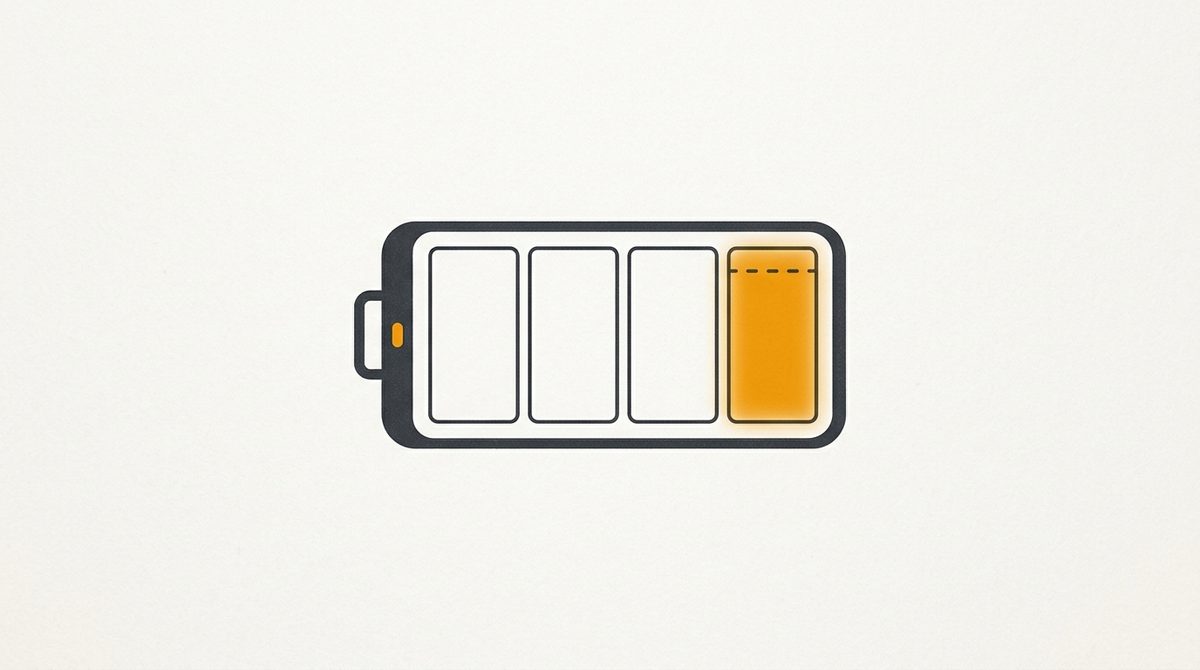
(32,918 mWh / 48,004 mWh) * 100 = 68.57%Our test laptop retains roughly 68.6% of its original factory runtime. When fully charged, it holds one-third less energy than the day it was unboxed.
3. Instant PowerShell One-Liner (No Browser Needed)
If you prefer terminal output without opening a browser window, our team wrote this quick PowerShell snippet.
Paste this command into your terminal:
powercfg /batteryreport /output "$HOME\battery-report.html" | Out-Null; $h = Get-Content "$HOME\battery-report.html" -Raw; $d = [regex]::Match($h, 'DESIGN CAPACITY</span></td><td>([\d,]+)').Groups[1].Value -replace ',',''; $f = [regex]::Match($h, 'FULL CHARGE CAPACITY</span></td><td>([\d,]+)').Groups[1].Value -replace ',',''; [PSCustomObject]@{ 'Design Capacity (mWh)' = [int]$d; 'Full Charge (mWh)' = [int]$f; 'Health' = "{0:P1}" -f ([int]$f / [int]$d) }It parses the generated report behind the scenes and prints a clean object in two seconds:
Design Capacity (mWh) Full Charge (mWh) Health
--------------------- ---------------- ------
                48004            32918 68.6%
4. What Does Your Battery Health Percentage Mean?
Batteries do not fail linearly. As chemical resistance increases inside the pack, voltage instability occurs under heavy CPU or GPU loads.
Use this evaluation matrix to assess your battery pack:
| Health Range | Condition Status | Real-World Performance & Next Steps |
|---|---|---|
| 90% - 100% | Excellent | Normal brand-new performance. No intervention needed. |
| 80% - 89% | Good | Normal aging after 1 to 2 years. Minor runtime reduction. |
| 65% - 79% | Degraded | Noticeable battery life loss. System may throttle under peak loads. |
| 50% - 64% | Poor | Severe runtime drop. Laptop may shut down unexpectedly at 20% charge. |
| Below 50% | Critical | Battery service required. Risk of swelling or instant cutoffs. |
When Should You Replace the Battery?
In our IT experience, plan a battery replacement when your health drops below 65%, or when the machine abruptly powers off while showing 15% to 20% remaining.
[!WARNING] Inspect for physical swelling: If your laptop trackpad becomes stiff to click or the bottom chassis bulges, stop charging immediately. Swollen lithium-ion cells pose a fire risk and must be safely recycled.
5. Can You Check Battery Health in Windows 11 Settings?
Many users wonder why they cannot find battery health inside the modern Windows 11 Settings app.
If you navigate to:
Settings > System > Power & batteryWindows displays:
- Current charge level and estimated time remaining.
- Battery saver toggles.
- App usage statistics across 24-hour and 7-day windows.
However, Microsoft intentionally leaves out wear levels and cycle counts from this interface. Some manufacturers (such as Lenovo Vantage, Dell Command, or ASUS MyASUS) bundle proprietary utility apps that display health percentages. But the powercfg /batteryreport terminal command remains the only universal method that works across every Windows laptop regardless of brand.
6. How to Extend Your Laptop Battery Lifespan
You cannot stop lithium-ion chemical aging completely. However, you can significantly slow down capacity loss by managing heat and charge thresholds:
- Enable Smart Charging / Battery Limiter: Most modern laptops support an 80% charge threshold in BIOS or companion software. Keeping cells at 80% rather than 100% overnight cuts chemical stress in half.
- Avoid Full 0% Discharges: Deep discharges accelerate cell wear. Plug your charger in when the battery drops to 20%.
- Control Heat During Heavy Tasks: Heat degrades battery chemistry faster than anything else. Never game or render video with the laptop sitting on a soft blanket or bed.
- Use Windows 11 Energy Saver: In Windows 11 24H2, Microsoft introduced a unified Energy Saver mode that curtails background CPU activity without dimming your display to unusable levels.
Related Runbooks & Windows Guides
Explore our companion workbench guides in the Windows 11 Everyday Essentials collection:
Get Our Sysadmin & AI Runbooks Direct to Your Inbox
Join 2,500+ engineers receiving our weekly PowerShell automation scripts, root cause analyses, and hardware diagnostic playbooks.
Frequently Asked Questions: How to Check Battery Health on Windows 11 (Terminal Guide)
Does Windows 11 show battery health percentage in Settings?
What is the command to check battery health in Windows 11?
How do I calculate my laptop battery health percentage?
At what battery health percentage should I replace my laptop battery?
Official Technical References
- Microsoft Learn: Powercfg command-line options — Microsoft Corporation
- Microsoft Support: Caring for your battery in Windows — Microsoft Corporation
Add PraveenTechWorld as a preferred source in your Google Search results.
Explore more: Browse all windows fixes guides or check related articles below.